
Wiki / Browser panel and Bulk Explain
Browser panel and Bulk Explain
Chat from the Card Browser and explain many cards at once.
Card Coach also works in Anki's Card Browser. You can chat about any card without reviewing it, or explain a whole selection of cards in one go.
The Browser panel
Open the Browser and click a card. The Card Coach panel shows on the side and works like the review chat.
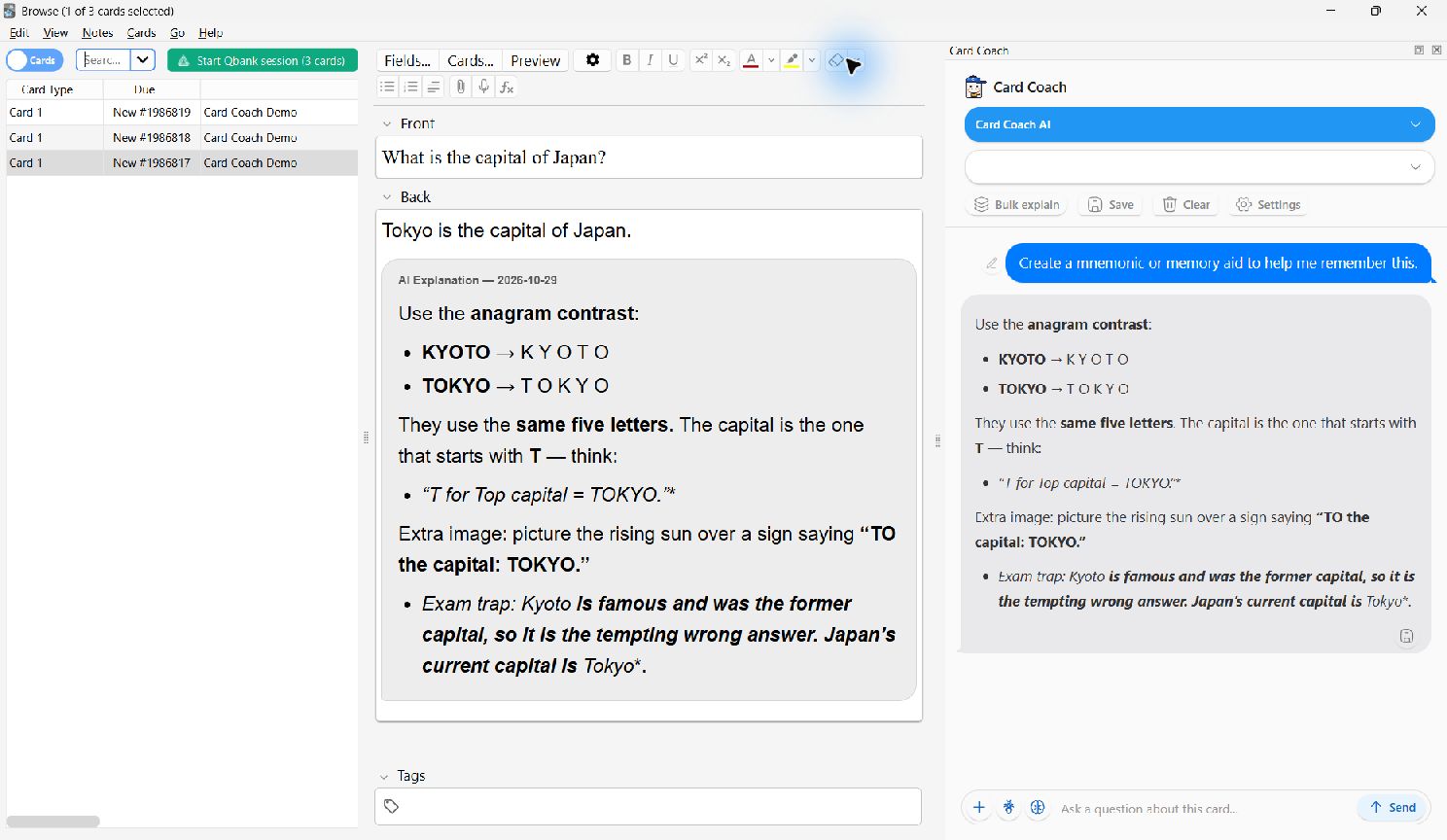
- Show or hide it with Ctrl+Shift+A, or the Card Coach Panel menu item (under Go/Jump on recent Anki versions, View on older ones).
- Closing the panel with its ✕ hides it too. Card Coach remembers your choice the next time you open the Browser.
- Save to Card saves the latest answer into a field, as on the review screen.
Bulk Explain
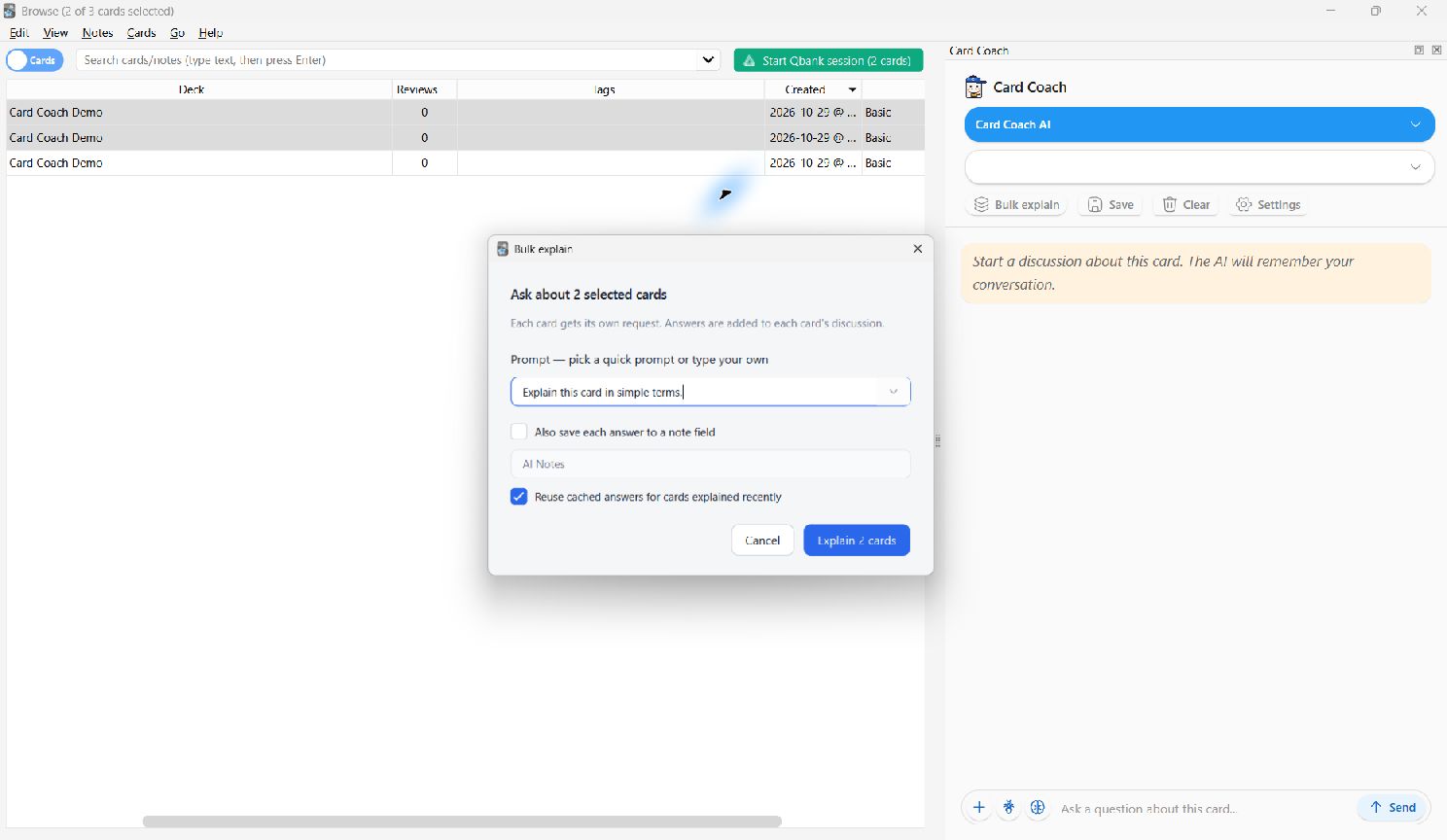
Bulk Explain runs the same prompt on many cards, one after another, and can save every answer into a field. It is handy for adding explanations to a premade deck.
- In the Browser, select the cards. Ctrl-click or Shift-click to pick several.
- Click Bulk Explain in the Card Coach panel.
- Choose a quick prompt or write your own, and optionally the field to save each answer into.
- Start. A progress bar shows each card. Click Cancel to stop.
QUOTA
Each card is one request. Try a handful of cards first to check the prompt and the field before running hundreds. If a card fails, the run continues and the failure is logged. There is a short pause between cards to avoid rate limits.