
Wiki / Give Your Answer
Give Your Answer
Type your answer and let the AI recommend a grade.
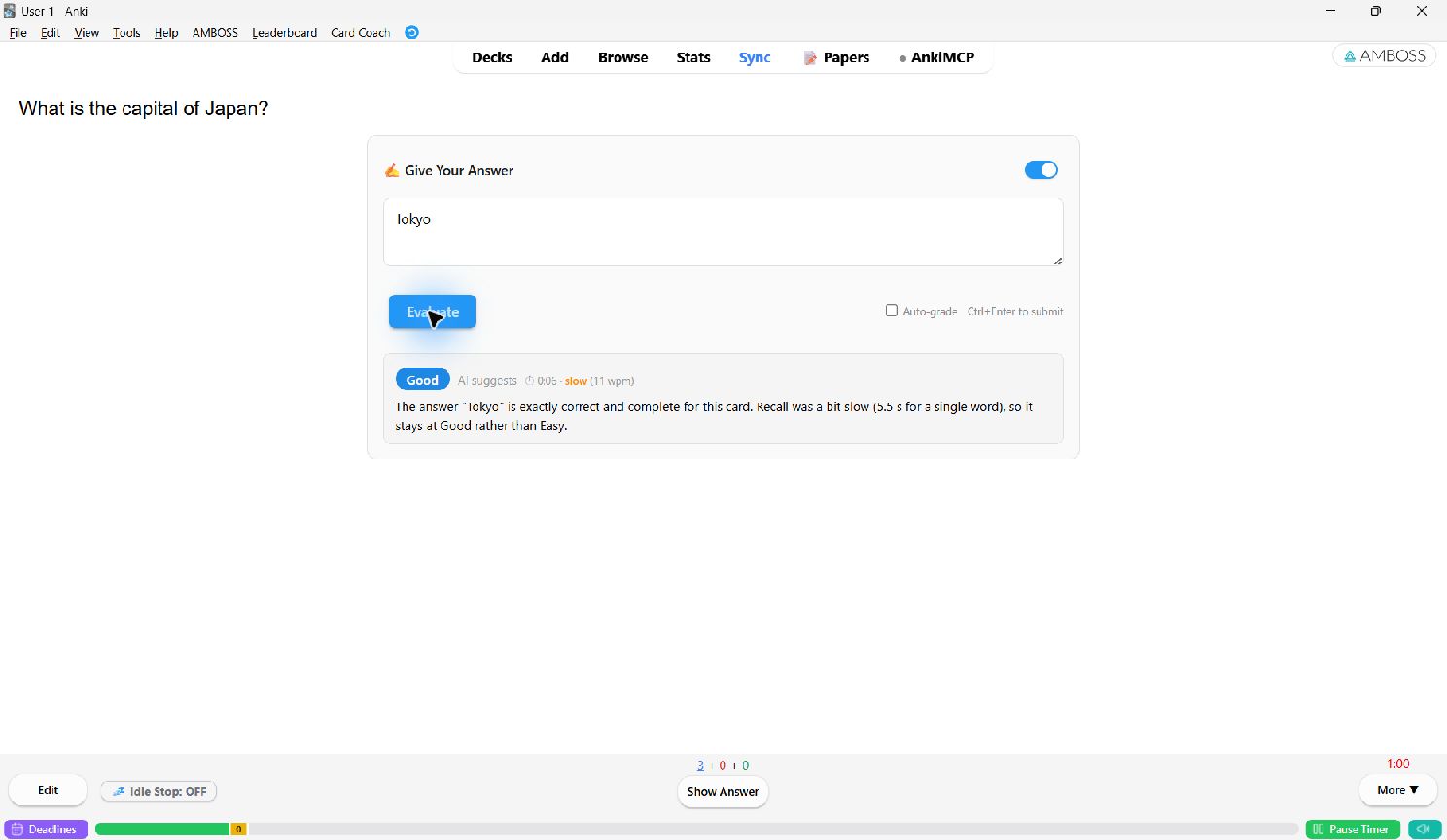
Give Your Answer (GUA) is active recall with a second opinion. You type your answer on the front of the card, the AI compares it with the back, and it recommends a grade with a short reason. By default the AI only recommends: you still press the button.
Turn it on
Open Card Coach → Grading and switch on Enable Give Your Answer. A box appears on the front of every review card.
How to use it
- Read the question and type your answer in the box. The cursor is already there.
- Click Evaluate, or press Ctrl+Enter (Cmd+Enter on a Mac).
- The recommended grade appears within a second or so, followed by the explanation.
- Flip the card. The suggestion is shown at the top and the matching grade button is outlined.
Time-aware grading
A timer starts at your first keystroke, so reading the card doesn't count, and stops when you submit. The AI takes the time into account: fast and correct leans towards Easy, slow and correct towards Good, wrong towards Again. Turn this off with Factor in recall time.
Strictness
| Strict | Small mistakes and missing details count against you. |
| Balanced | Paraphrases and minor omissions are fine. Recommended. |
| Lenient | Getting the core idea is enough. |
For full control, write your own rubric in Custom grading rubric (advanced). It replaces the built-in rubric, so strictness is ignored while it is filled in.
Auto-grade (optional)
With Auto-flip and grade with Space on (also the Auto-grade checkbox next to Evaluate), the card flips by itself after grading, and pressing Space applies the AI's grade. Clicking a different grade button always wins over the AI.
Auto-grade changes your scheduling, because the AI effectively presses a button for you. If you disagree with a grade, undo with Ctrl+Z. It needs Anki's "Spacebar rates card" preference, which is on by default.
The ON/OFF switch
The switch in the box header turns typing off. Use it when you want Space to reach Anki instead of the text box. Your choice is kept for later cards.
Other options
- Explain the grade: turn off to see the grade only.
- Stream the result: the grade appears as soon as the AI decides and the explanation follows word by word. Turn off if your model streams badly.
- Use a different model: grade with a different provider or model from the one you chat with. Your saved keys are reused.
If the answer is in an image and your model can't read images, the AI grades from what you typed and general knowledge. For image answers, turn on image sending and use a vision model.