
Wiki / Ask about a card
Ask about a card
The chat panel, quick prompts and brief answers.
When you flip a card, a Card Coach box appears below it. Type a question and press Enter. The AI already knows the card's front, back, deck and tags, so you don't need to paste anything.
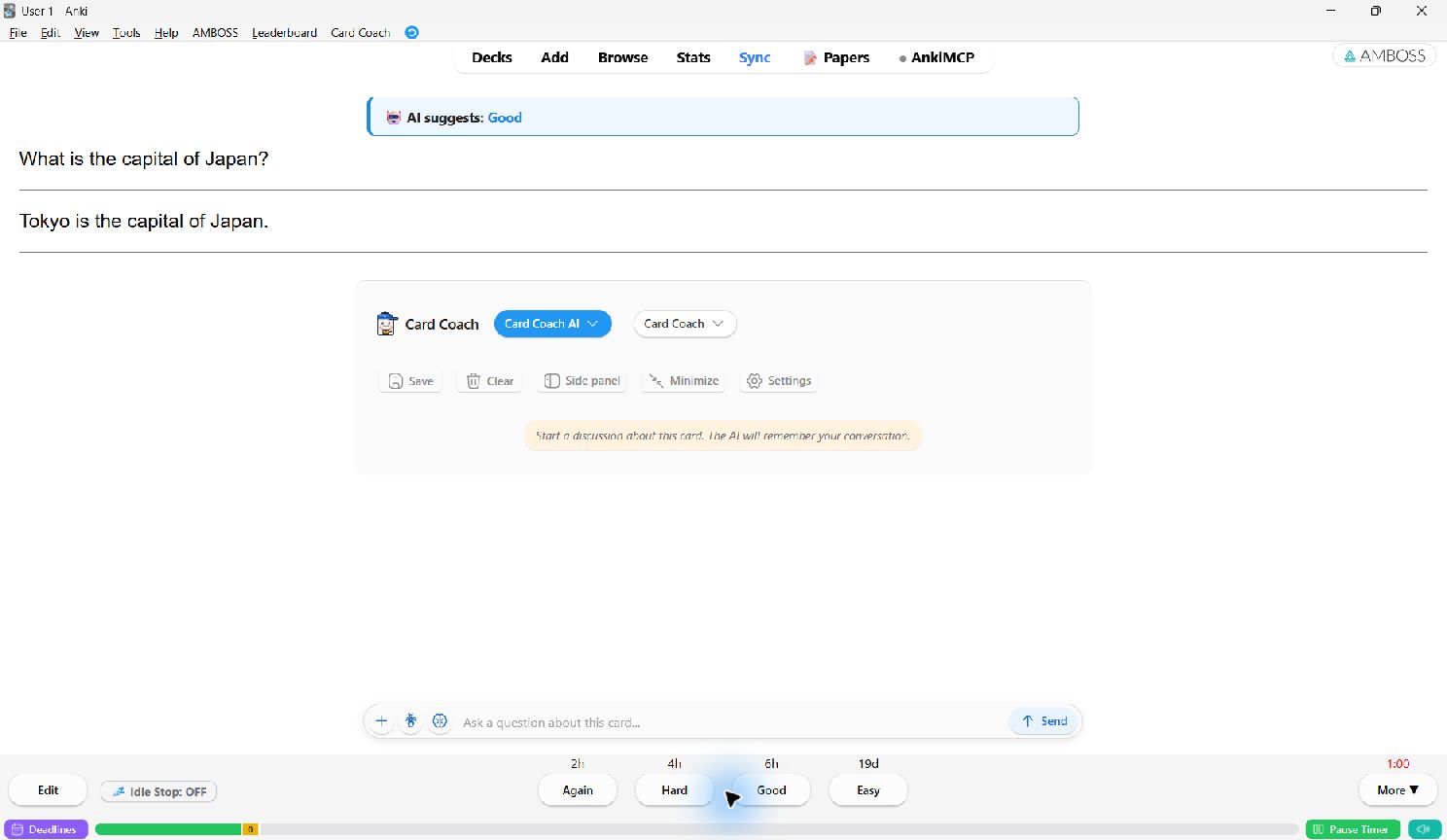
What the AI sees
- The card's question and answer (the rendered card, not raw field codes).
- The deck path, for example
Medicine::Immunology::Transplant, so it pitches the answer at your level. - The note type and tags, unless you turn them off in Chat panel.
- The card's images, only if you turn on image sending.
- Your earlier messages about the same note, so follow-up questions work.
Quick prompts
The + button at the left of the chat box opens your quick prompts. Click one to send it.
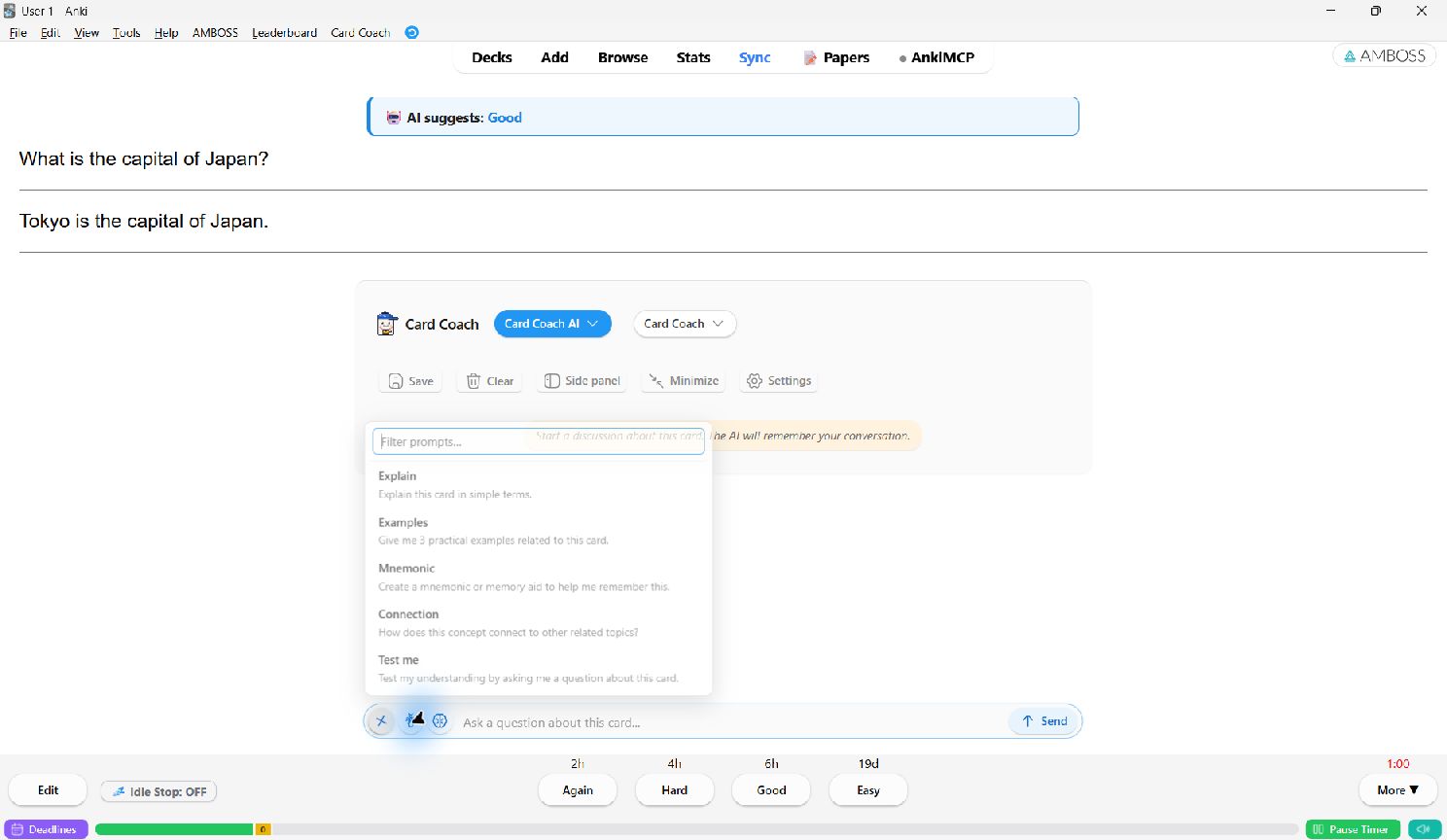
| Prompt | What it asks |
|---|---|
| Explain | Explain this card in simple terms. |
| Examples | Three practical examples related to the card. |
| Mnemonic | A mnemonic or memory aid. |
| Connection | How the concept connects to related topics. |
| Test me | A question to check your understanding. |
| Simplify | The concept explained for a beginner. |
| Why failing? | Looks at the card's review history (lapses, ease, interval) and suggests a memory strategy for that card. |
Add, edit, reorder or delete prompts in Card Coach → Quick prompts.
Why failing? is the only prompt that sends review statistics. Other questions never include them.
Brief answers and Thinking
Two toggles sit next to +:
- Brief answers asks for a short reply instead of a full explanation. Choose how short in Answer style: Standard, Short (default), Very short, or One line.
- Thinking (Card Coach AI) uses Card Coach Thinking for harder questions. It is slower and uses more quota.
Below the card or in a side panel
The chat starts below the card. Click Side panel in the panel header to move it into a resizable panel at the left of the review window. Click Inline view or close the panel to bring it back below the card. Card Coach remembers your choice across cards and restarts.
The header also has Save (see Save answers to cards), Clear to start the conversation again, and Settings. The two dropdowns at the top of the side panel switch the provider and the model.
Chat history and the answer cache
- Conversations are saved per note. When the card comes back, so does the conversation.
- If you ask exactly the same question in the same context again, the saved answer comes back instantly with no new request. Cached answers expire after 7 days by default (Advanced).
Answer language
By default the AI answers in the card's language. To always get answers in one language, set Answer style → Response language to English, French, Arabic, Spanish, Japanese and many more, or type any language name under Custom. Right-to-left text such as Arabic, Hebrew, Persian and Urdu is displayed correctly, including when it is mixed with Latin text.
Formatting and formulas
Answers support headings, lists, tables and code. Math and chemistry formulas are rendered with Anki's built-in MathJax.