
Wiki / Image cards
Image cards
Let a vision model read diagrams, ECGs and slides.
Card Coach can send the images on a card to the AI, so it can explain an anatomy diagram, an ECG, a histology slide or an image-occlusion card. Image sending is off by default, and it only works with models that accept images.
Turn it on
- Open Card Coach → Images and switch on Send card images.
- Pick a model that accepts images. In the model browser, the image column shows yes, no or unknown.
- Leave Image support on Auto unless you need to override it (see below).
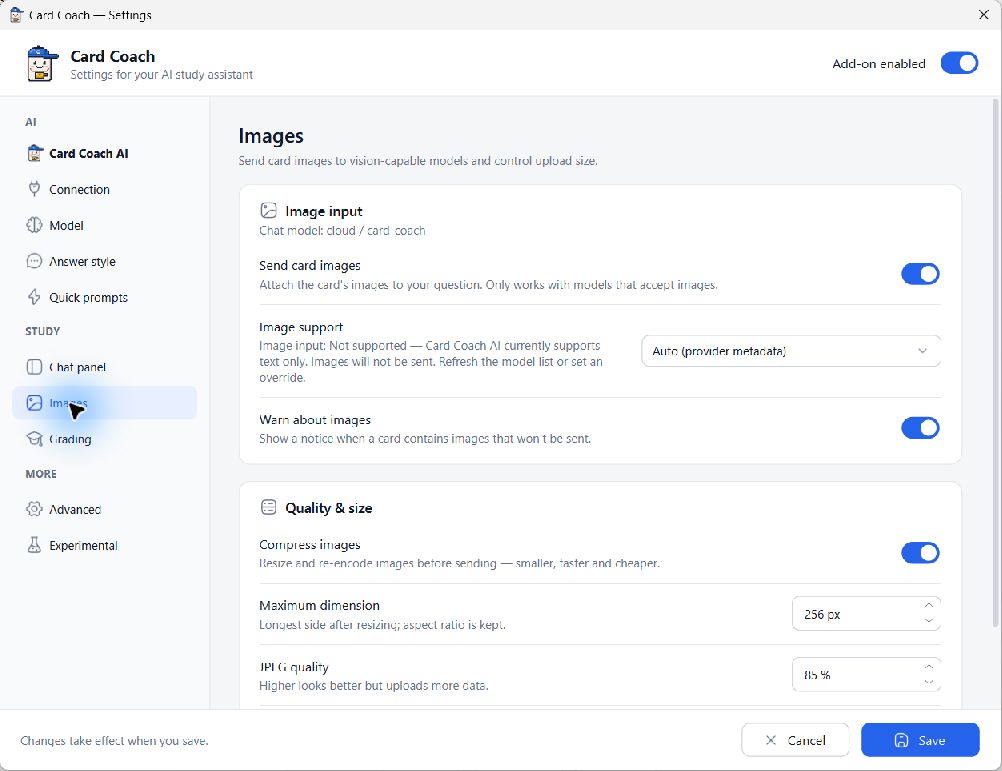
Image support: Auto, Allow, Disable
| Auto | Uses what the provider reports about the model, from the last model-list refresh. |
| Allow | Always sends images to this provider, endpoint and model. Use it for models the provider doesn't describe. |
| Disable | Never sends images to this model. |
If the support is unknown, Card Coach sends text only until you choose Allow. Refresh the model list (↻ Refresh in the model browser) to update what is known. The Grading page has the same control for its grading model.
Size and quality
- Compress images (on by default) resizes and re-encodes images before upload. This makes requests faster and cheaper.
- Maximum dimension: longest side after resizing, 1024 px by default.
- JPEG quality: 85 by default. Higher looks better but uploads more data.
- Maximum total size: 20 MB per request by default. Images over the limit are skipped.
Warn about images shows a notice when a card has images that won't be sent.
Where images are used
The review chat, the Browser panel, Bulk Explain and Give Your Answer all follow the same setting. The beta selection popup is always text only. Questions that include images skip the answer cache.